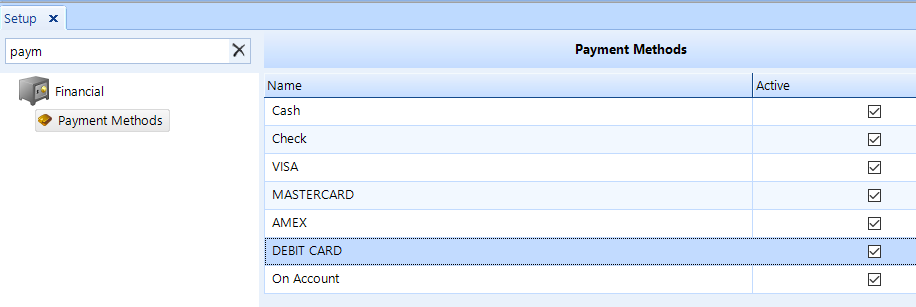
Payment methods are the acceptable methods by which your customers pay for goods and services. Typically these include cash, check, Visa, MasterCard, and other credit cards. The ability to charge to an account is one type of payment method, but that is built into the accounts receivable system so we do not describe it here.
To access Payment Methods, click on the Setup button in the ribbon, then click Payment Methods beneath the Financial node of the tree menu in the left window pane.
Follow these steps to add or edit a payment method:
Access Payment Methods setup using the instructions above.
To add a new payment method, click the Add button in the ribbon.
To edit an existing payment method, choose the payment method from the listing and then click the Edit button in the ribbon.
In the popup window, enter the Name of the payment method.
Check the Active box if this is an active payment method that is presently available as a method of payment. In the future, uncheck this box your shop stops accepting this method of payment.
Click OK to save changes to this payment method.
When posting a payment, the payment methods will appear throughout Shop Manager in the same order of appearance in this list. For this reason, you may want to place the payment methods that are used most frequently at the top of the list.
Follow these steps to change the payment method list order:
Access the Payment Methods using the instructions above.
From its current position, drag-and-drop the payment method that you want to move to the new position that you want it to occupy in the listing.
Click the Save button in the ribbon to save this listing order.
Follow these steps to delete a payment method:
Access the existing payment method using the instructions above.
Click on the Payment Method you need to delete.
Click the Delete button in the ribbon.
Click Yes to confirm that you want to delete the payment method.